
How to set parental controls on Android in 2026
18 July 2026 · James Pearson
Short answer: the most effective Android setup combines Family Link controls with app level filtering and clear home rules. This gives parents stronger protection while keeping everyday life manageable.
Why Android controls need a layered setup
Many parents switch on one setting and expect full protection. In practice children can still find workarounds if only one layer is active. A layered setup gives better results and fewer surprises.
- Account layer controls purchases and app permissions.
- Device layer controls screen time and access windows.
- Filtering layer blocks risky content across more traffic paths.
Step 1: Set up Family Link correctly
- Install Family Link on your phone and your child phone.
- Link your child account to supervision.
- Enable app approval so new installs need parent approval.
- Set age based content restrictions in Play Store settings.
- Confirm SafeSearch is enabled on your child account.
Official guide: Google Family Link Help
Step 2: Configure daily time limits
- Set a daily device limit that fits school, sleep, and free time.
- Add a bedtime schedule for consistent device off hours.
- Add study windows that reduce distraction during homework.
Keep limits realistic at the start. You can tighten them after one week based on what is working.
Step 3: Lock the obvious bypass paths
- Disable unknown app sources where possible.
- Keep your parent password private and unique.
- Review newly installed apps each week.
- Remove browsers or tools you do not want used.
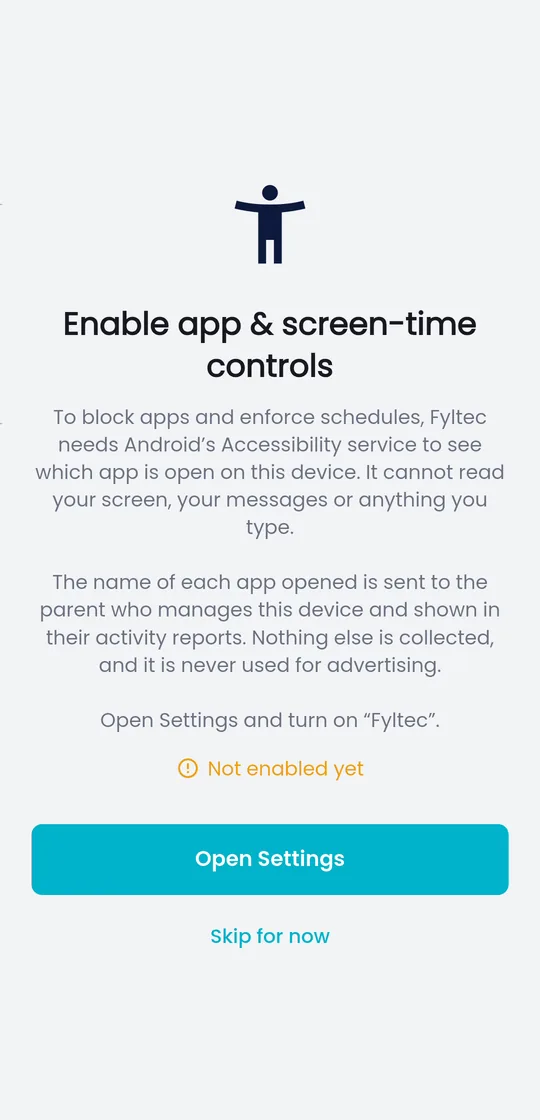
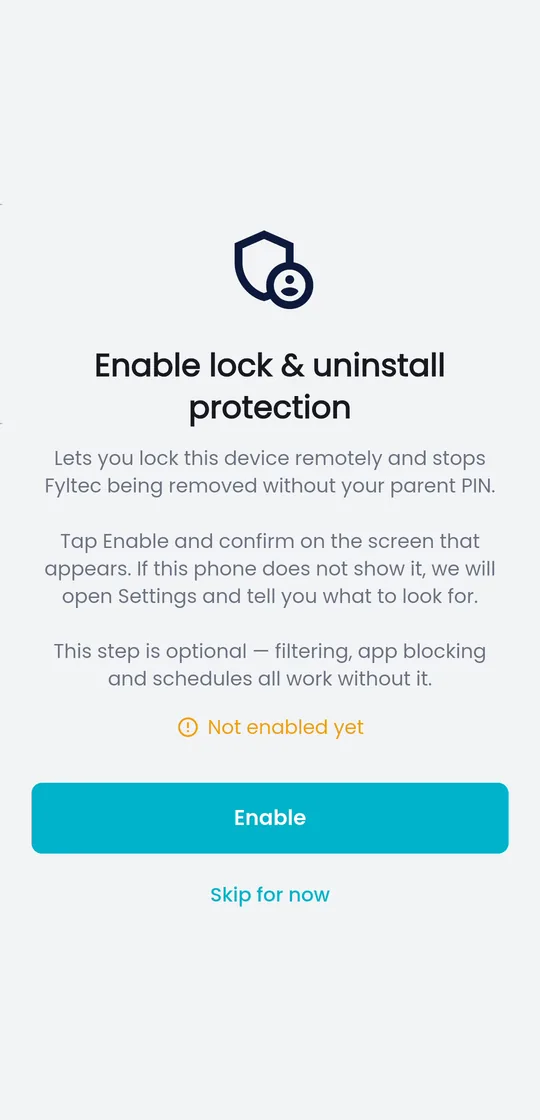
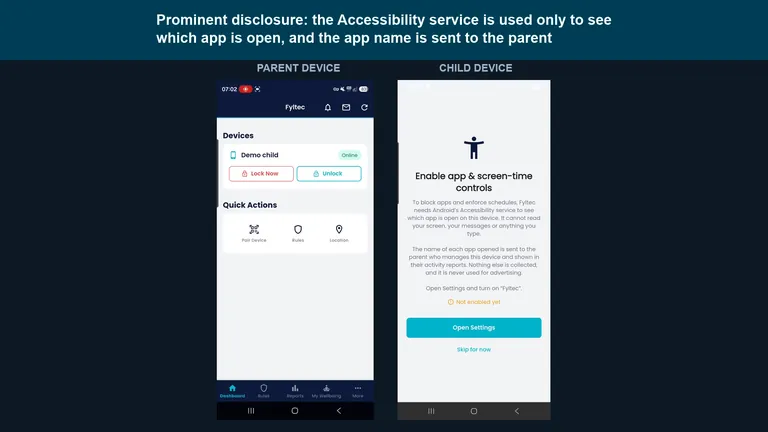 Watch: turning on app and screen-time controls (Android)What the Accessibility permission is used for, and what it cannot see. 1:00 on YouTube.
If your child is technical, review settings twice in the first two weeks.
Step 4: Add content filtering for stronger coverage
Family Link is useful, but many families also need filtering that works beyond one browser. Add a filtering layer that can block risky categories and domains with fewer gaps.
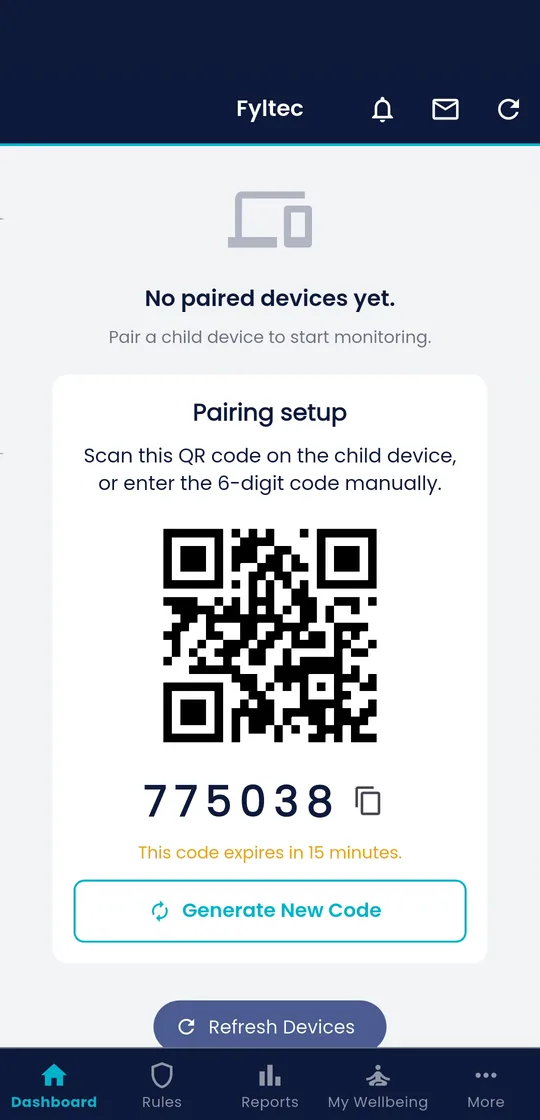
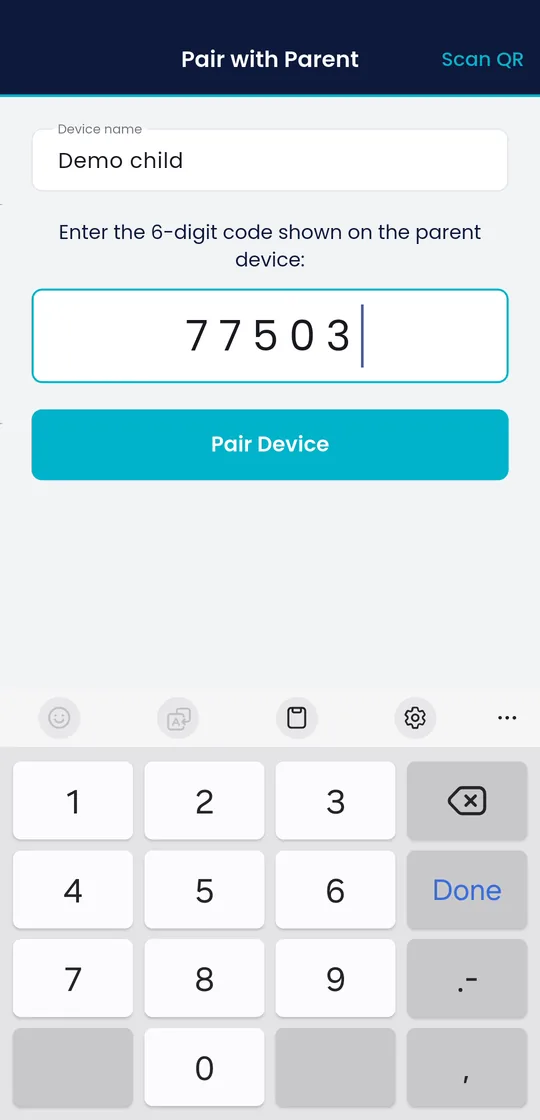
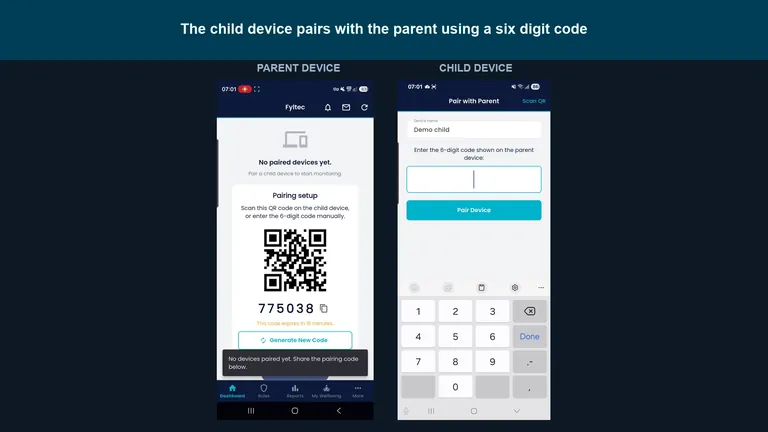 Watch: the full parent and child setup, side by sidePairing, protection, app controls and location, recorded on Android. The parent app is the same on iPhone. 5:22 on YouTube.
This is usually where parents notice the biggest improvement in consistency.
Step 5: Review and adjust as a family
- Explain what changed and why.
- Share what your child can do to earn more flexibility.
- Review alerts and trends together once a week.
Tools work best when children understand the goal is safety and balance.
Frequently asked questions
Are Android parental controls enough by themselves?
They are a strong start. Many families still benefit from adding filtering and weekly review checks.
What if my child keeps finding workarounds?
Reduce open bypass paths first, then simplify allowed apps, then review limits. Avoid changing too many settings at once.
Should I use strict settings forever?
No. Start with stronger defaults, then relax where trust and maturity increase.
Further reading
- Google Family Link Help, official supervision setup.
- Internet Matters: parental controls, step by step guides across devices.
- Common Sense Media: parents’ guide to parental controls, independent, research-based advice.
- How to set up parental controls on iPhone, the iPhone counterpart to this guide.
- The complete guide to parental controls, how all the layers fit together.
If you want one place to manage filtering, schedules, and parent alerts, you can start a 7 day Fyltec trial.