
How to set up Fyltec: a step-by-step guide with screenshots
27 October 2026 · James Pearson
Short answer: install Fyltec on your phone and on your child’s phone, pair them with a 6-digit code, turn on protection on the child’s phone, then choose which categories to block from your own phone. It takes about ten minutes, and every screen you will see is shown below.
 Prefer to watch? The whole setup in five minutesParent phone on the left, child phone on the right, recorded on Android. The parent app is the same on iPhone. 5:22 on YouTube.
Step 1: Install Fyltec on your phone and create an account
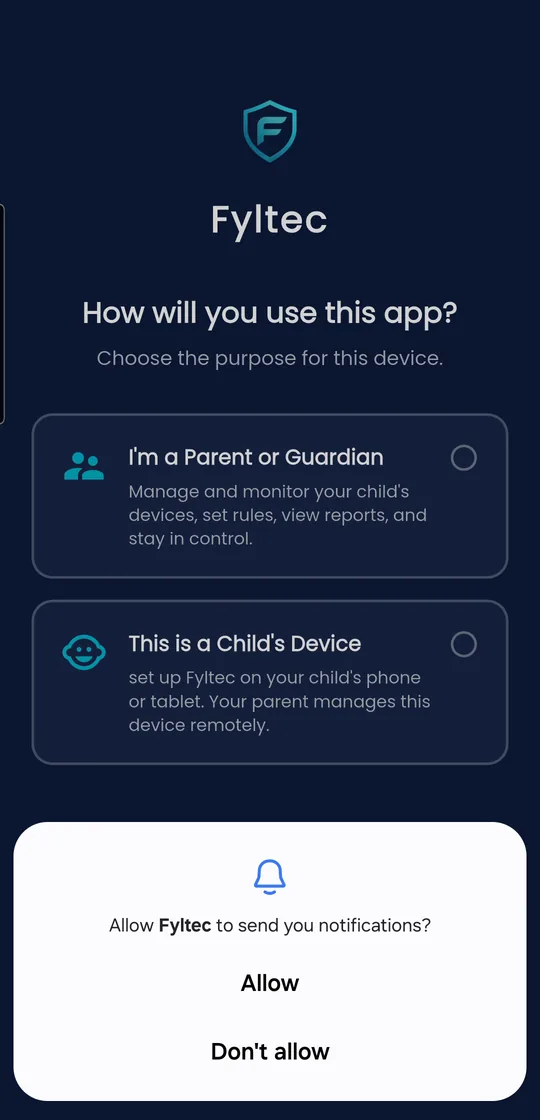
Download Fyltec from the App Store or Google Play and choose I’m a Parent or Guardian. Create your account with your email address and a password. This phone becomes the place you manage everything from.
Step 2: Pair your child’s phone
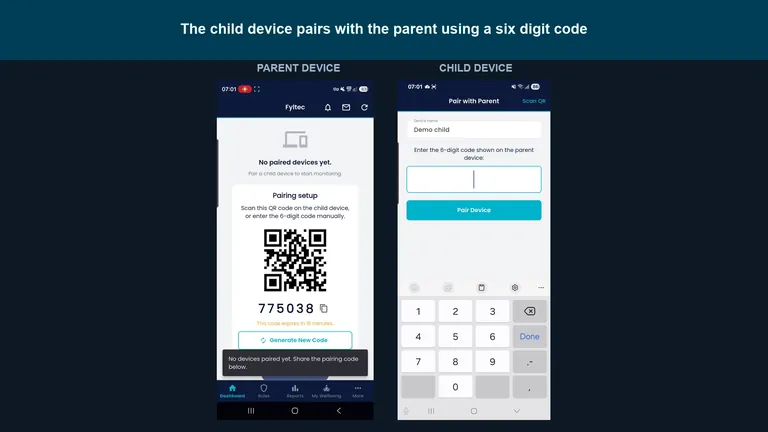
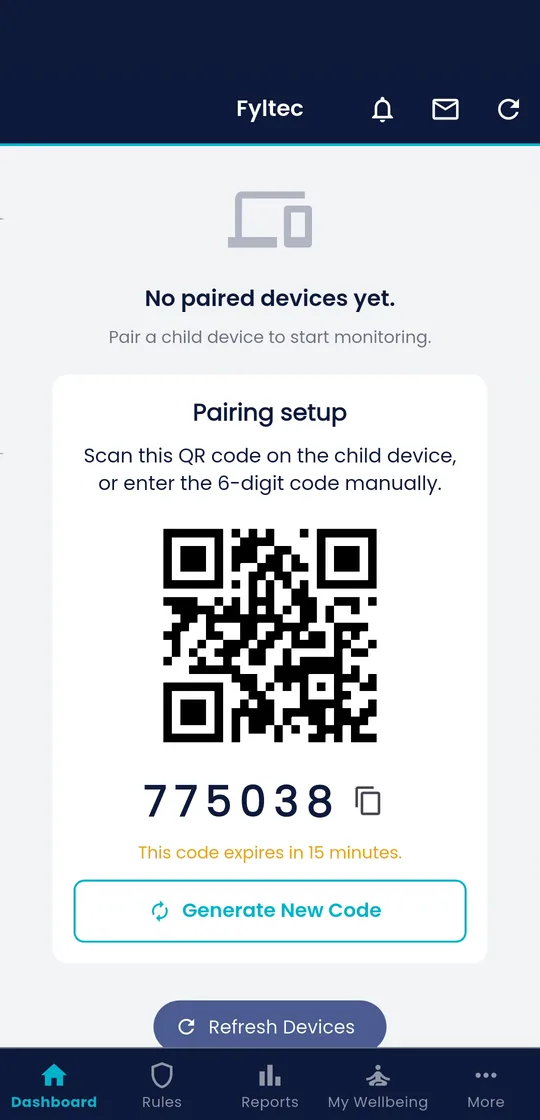
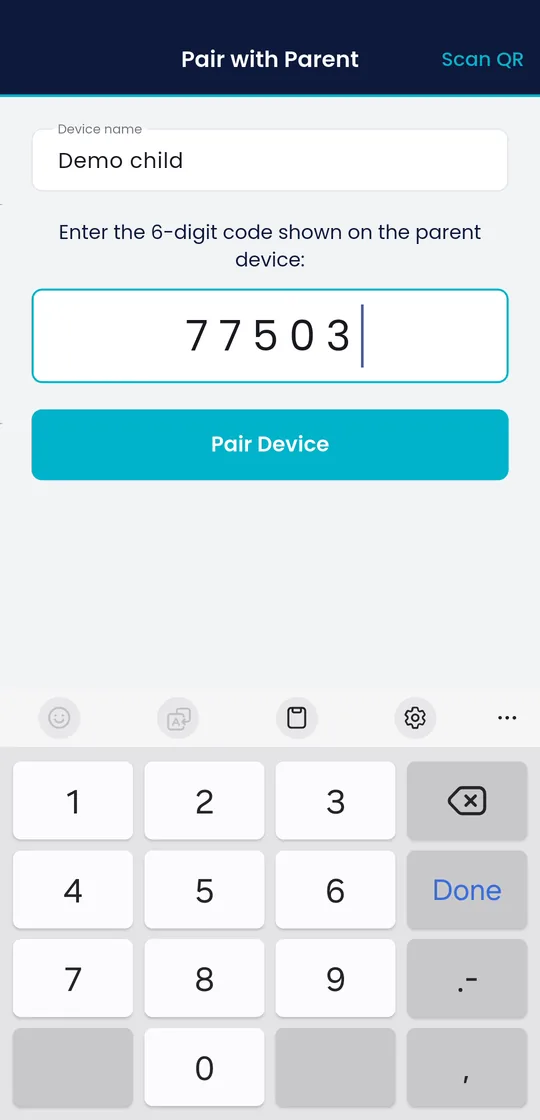
On your phone, tap Pair Device. Fyltec shows a QR code and a 6-digit code, which expires after 15 minutes. Install Fyltec on your child’s phone, choose This is a Child’s Device, give the device a name, and enter the code.
Step 3: Turn on protection on the child’s phone
Next, the child’s phone explains exactly what the content filter does before asking for anything: it checks the address of each site the device looks up, and it cannot see the contents of pages, messages or anything typed. Tap Turn on Protection and approve the system prompt.
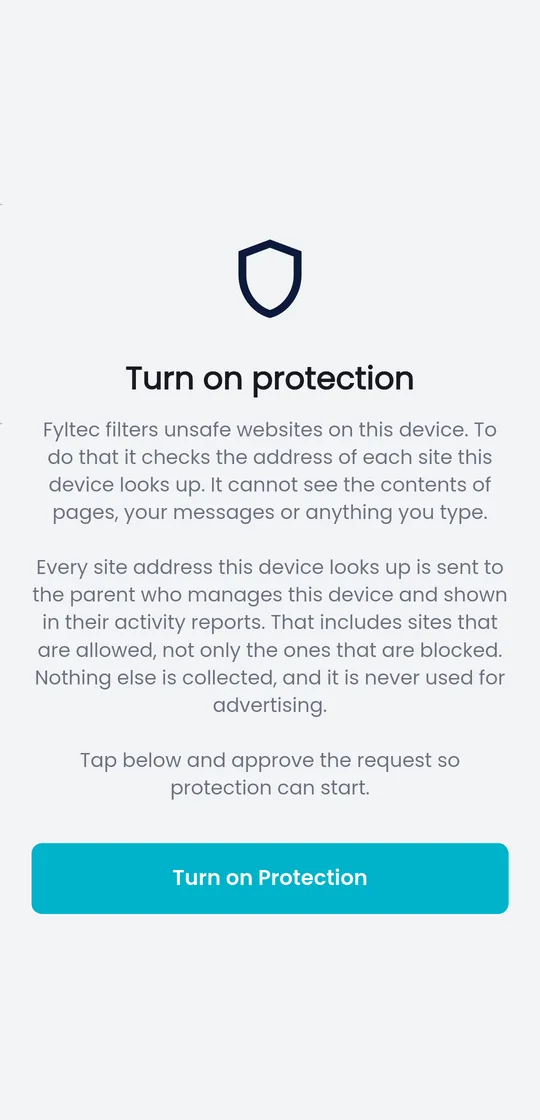
On an iPhone, this turns on Fyltec’s content filter through Apple’s DNS settings. The next step is for Android phones only.
Step 4 (Android): Turn on app controls and uninstall protection
On Android, two more permissions make Fyltec stronger, and each one is explained before Android’s own prompt:
- App and screen-time controls use Android’s Accessibility service to see which app is open, so app blocks and schedules can be enforced. They cannot read the screen, messages or anything typed.
- Lock and uninstall protection stops Fyltec being removed without your parent PIN.
Both are optional, and filtering keeps working without them, but together they make Fyltec much harder to switch off. If protection is switched off anyway, you get a tamper alert.
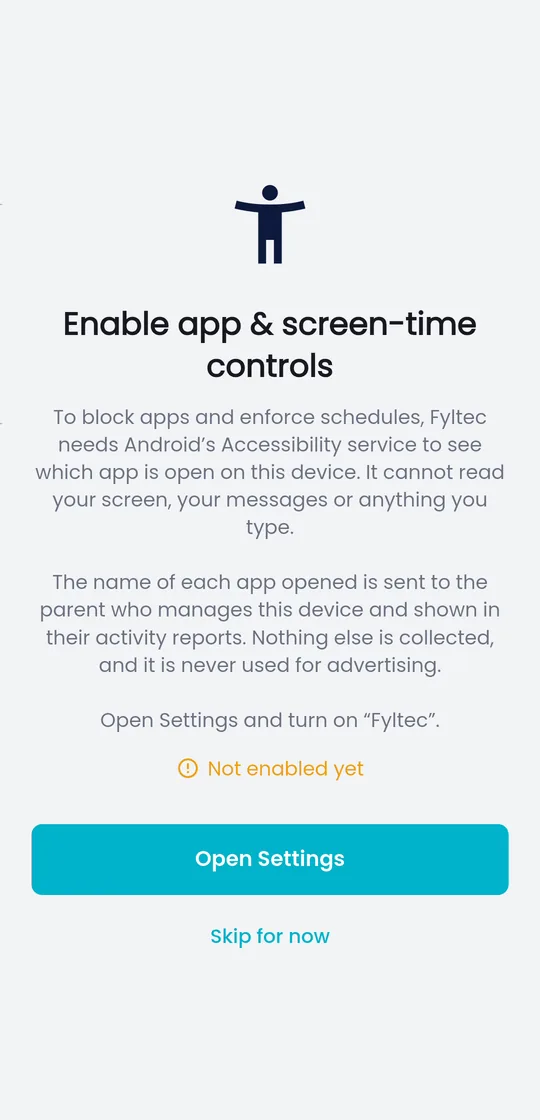
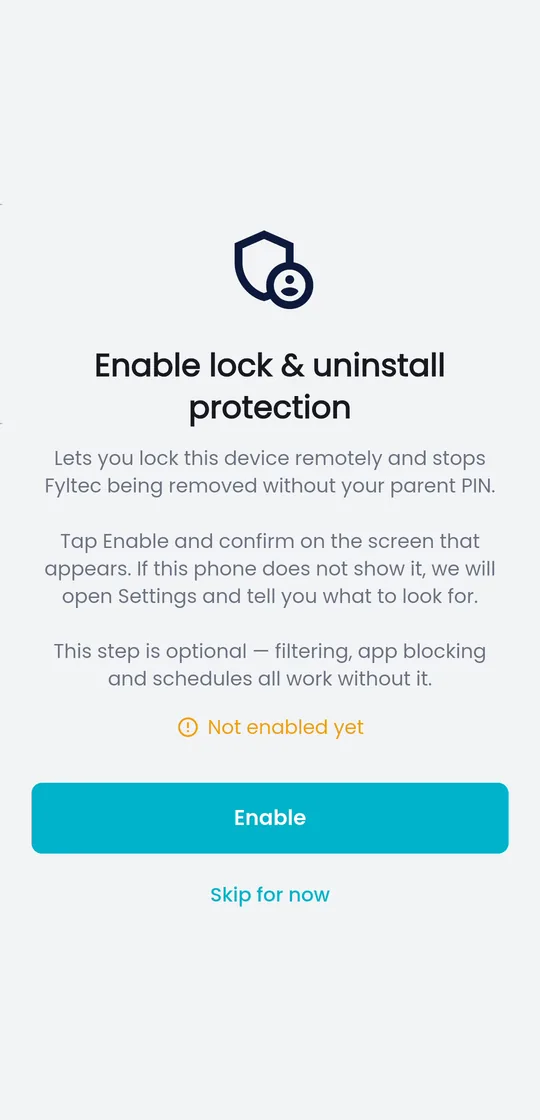
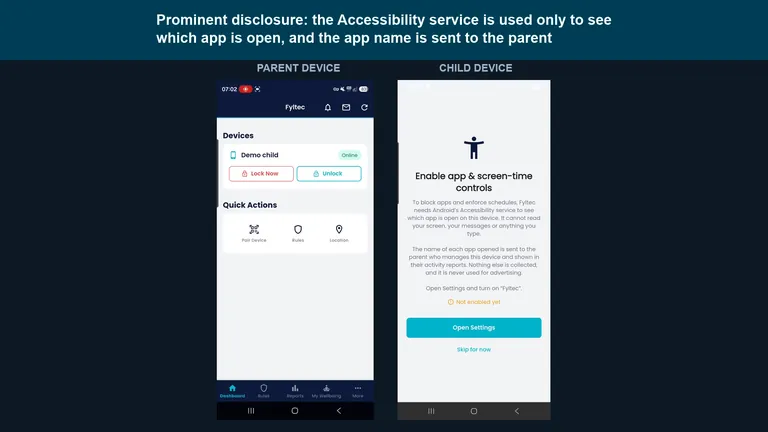 Watch: turning on app and screen-time controlsWhat the Accessibility permission is used for, and the exact Android settings to tap. 1:00 on YouTube.
Step 5: Choose what to block
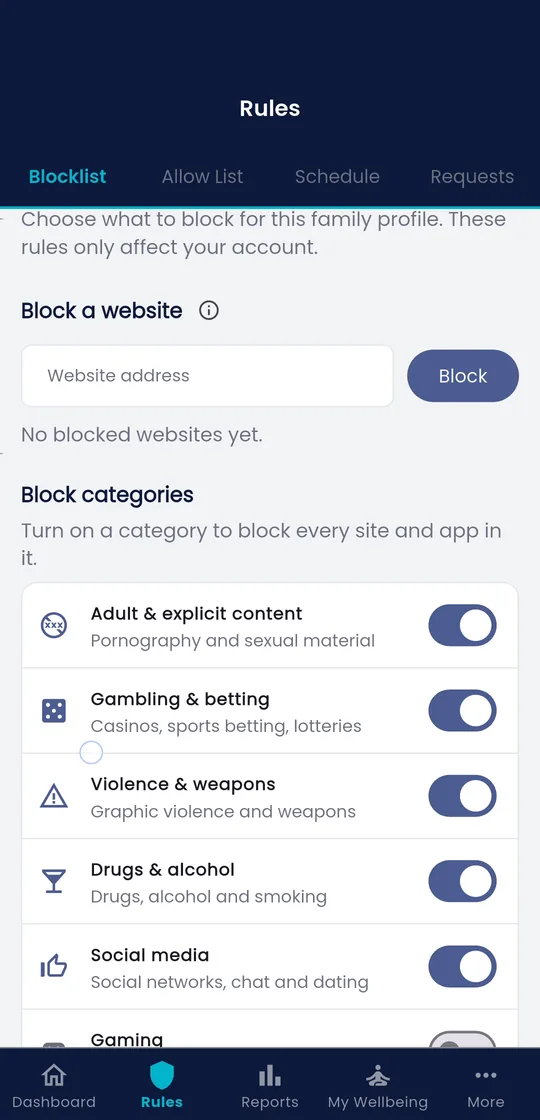
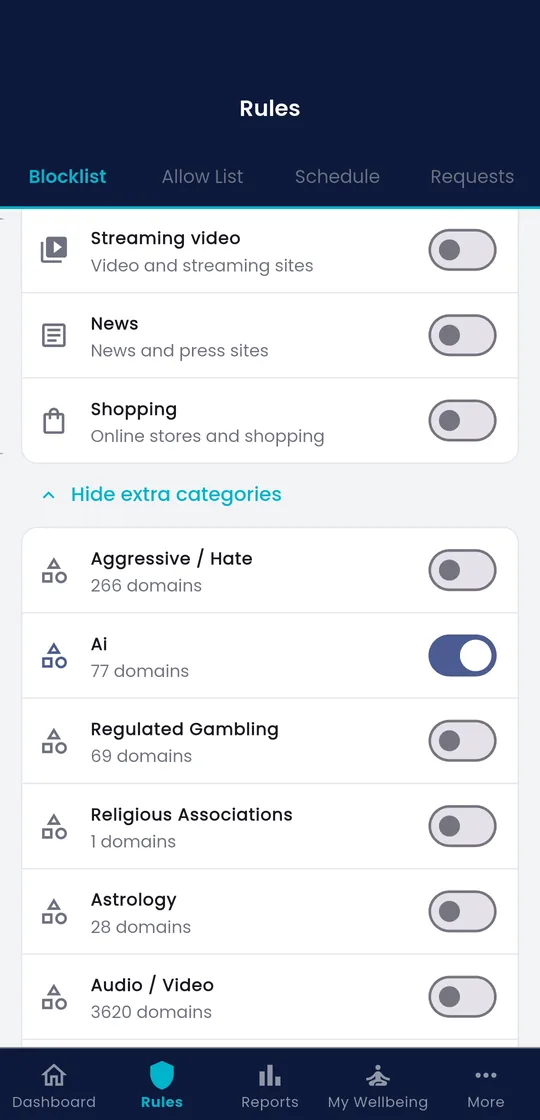
Back on your phone, open Rules. Turn on a category to block every site and app in it: adult content, gambling, violence, drugs and alcohol, social media, gaming and more. You can also block a single website by typing its address, or allow a site you trust.
Step 6: See what your child sees
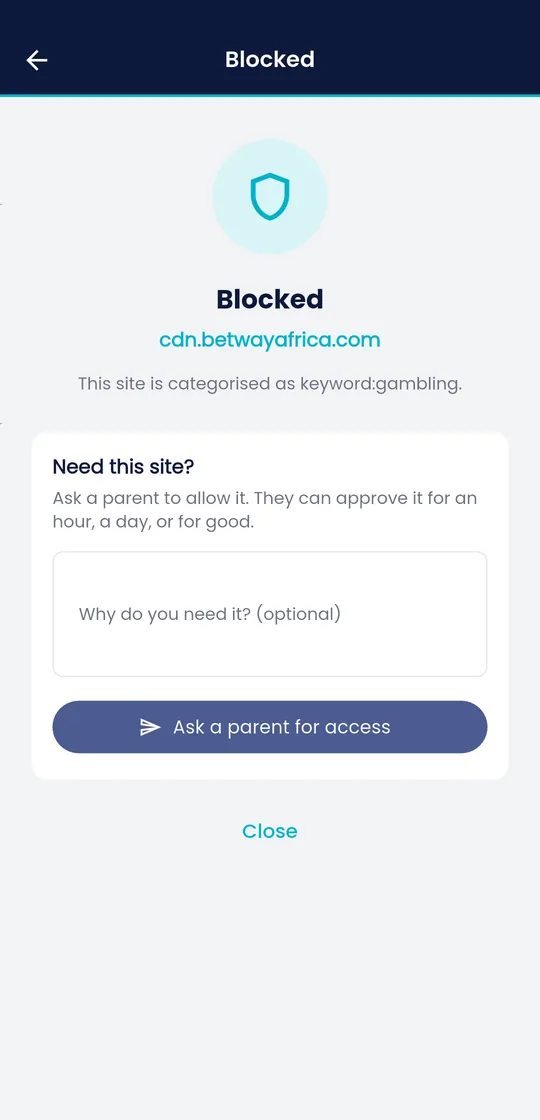
When your child opens a blocked site, it simply will not load, in any browser or app. Fyltec then tells them why, and gives them a button to ask you for access. You can approve a request for an hour, a day or for good. At the same moment, your phone is told what was blocked.
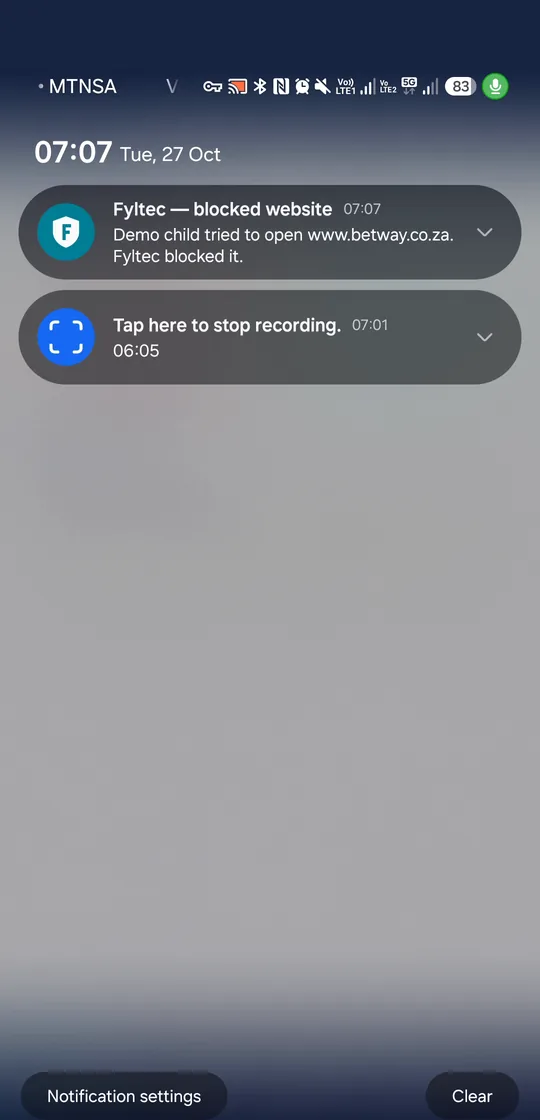
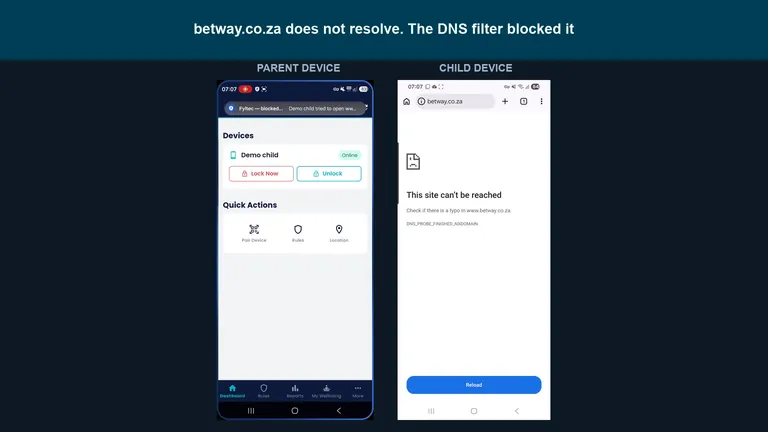 Watch: a blocked site, and the alert on the parent's phoneA gambling site is blocked while ChatGPT keeps working, so you can see the filter is selective. 1:19 on YouTube.
Step 7 (optional, Premium): Share location
On the Premium plan, the child’s phone can share its location with you. It explains first that location may be collected in the background and is only sent to you, and the whole feature can be switched off at any time. You then see the latest position on a map, and can be alerted when the device arrives at or leaves a place you choose.
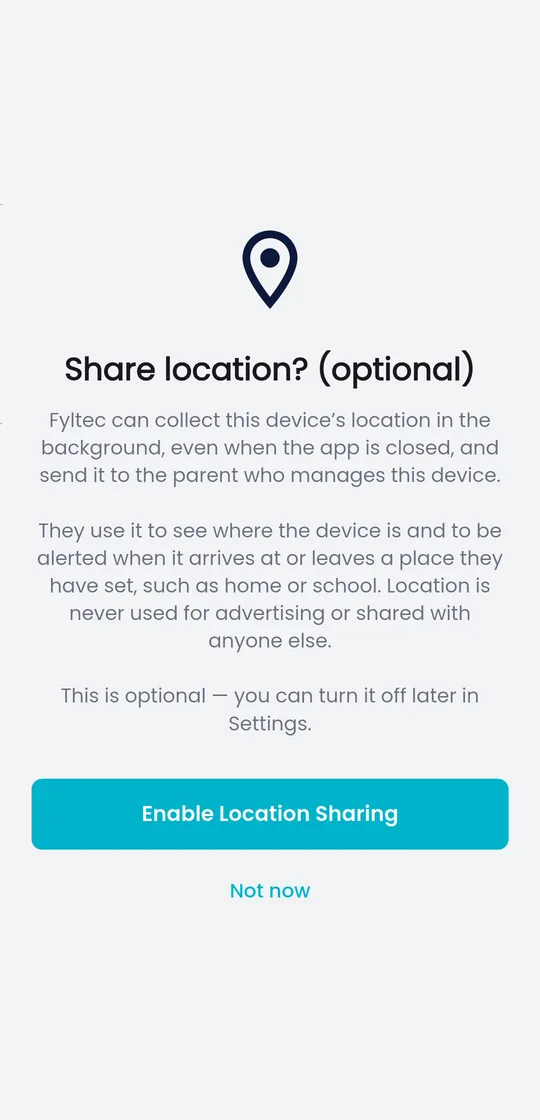
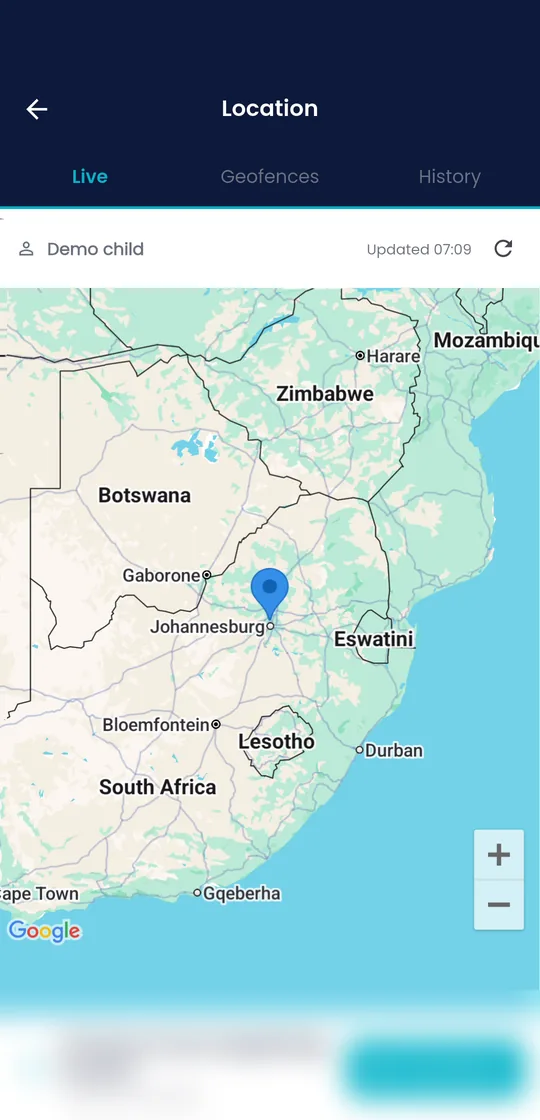
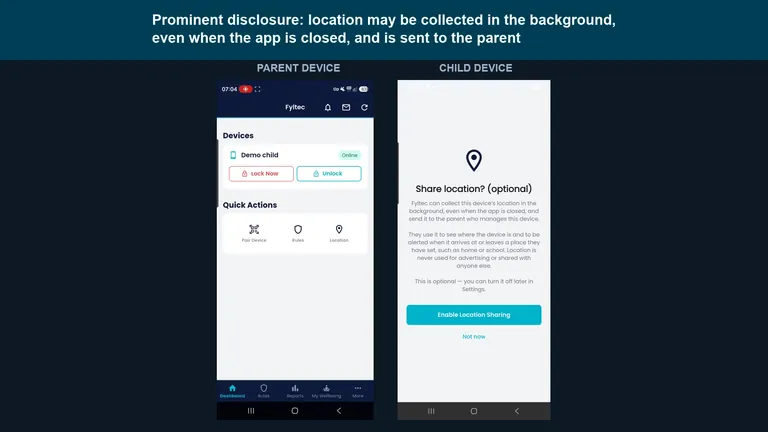 Watch: sharing location with a parentHow the child's phone asks, and what you see on yours. 0:57 on YouTube.
Step 8: Pause the internet when you need to
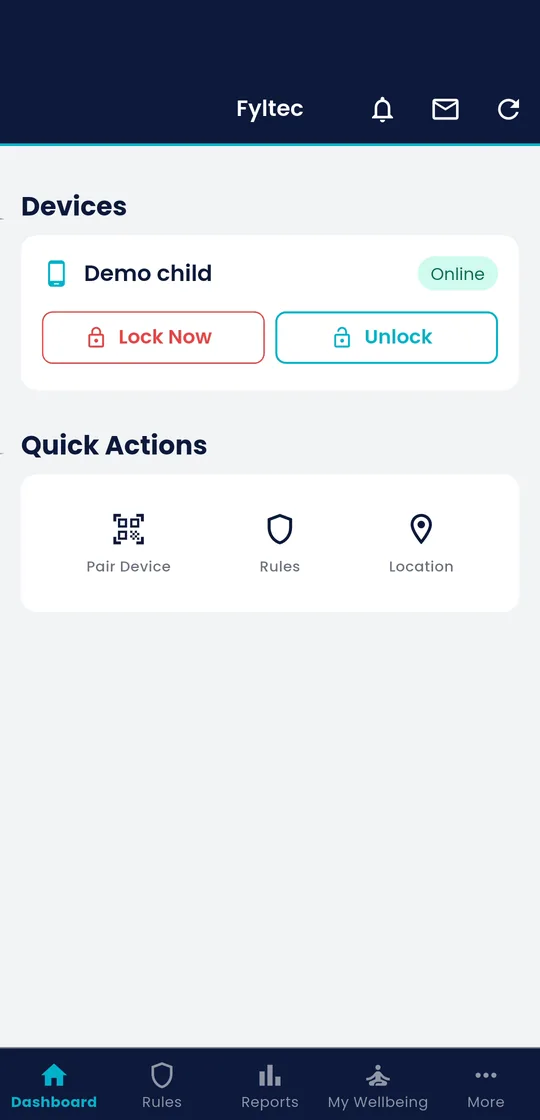
Your dashboard shows each child device and whether it is online. Tap Lock Now to pause the internet on that device straight away, and Unlock to bring it back. Calls and SMS keep working, so your child can always reach you. On Premium, Bedtime and Focus schedules do this automatically at the times you set.
Ready to set it up? See the plans and pricing, from R59 a month.
Frequently asked questions
Does my child need their own account?
No. You create one parent account. Your child’s phone is linked to it with the 6-digit pairing code, and you manage everything from your phone.
Can I use Fyltec if I have an iPhone and my child has an Android phone?
Yes. The parent app works the same on iPhone and Android, and any mix of parent and child devices is fine.
Will blocking a category break the rest of the internet?
No. Only the categories and sites you choose are blocked. Everything else loads normally, as the video above shows.
Further reading
- How DNS filtering blocks unsafe content inside apps, how the filter works underneath.
- New phone setup checklist for parents, the first 30 minutes with a new phone.
- How to reduce bypass attempts on your child’s phone, keeping protection on.
- All our walkthrough videos on YouTube.